Use this page to prepare a 4321 Timer device for a Congress session room. The app uses the same event and venue context as Event Presenter.
Setup Instructions
- Open 4321 Timer and go to Settings.
- Enter or scan the Event ID supplied through the event’s secure operator process. Do not publish real Event IDs or QR codes.
- Select the exact venue or room from the available list.
- Choose your role:
Console — Select this for a control device.
Display — Select this for a view-only timer device. - Confirm that the app joins the room and shows the expected connection state.
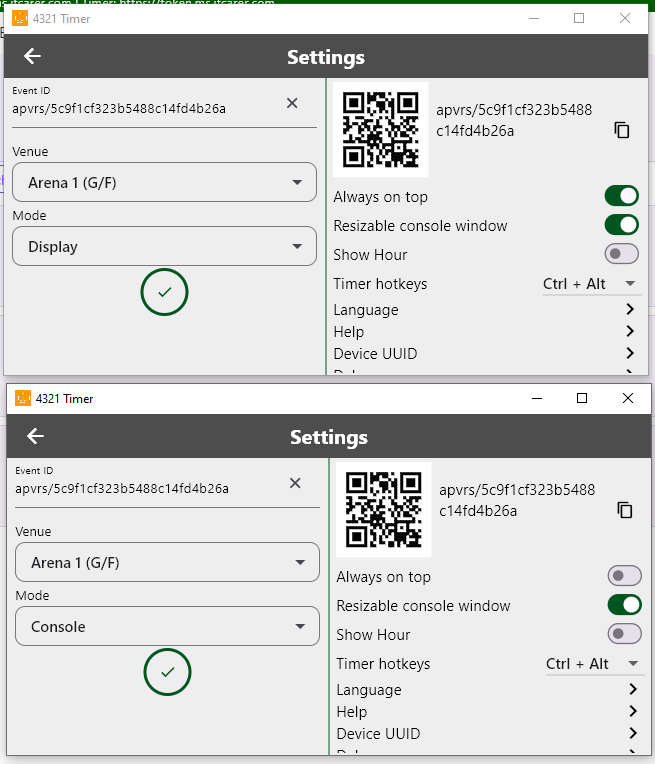
Console and Display Roles
A clear understanding of the two modes is essential for a successful session setup.
- Console (Control Mode): This is the operator’s primary tool. It provides live control buttons to Start, Pause, Reset, Blink, Sync, and select presets.
- Display (View-Only Mode): This mode shows the timer without live control buttons. It is ideal for screens that should only display information.
- Recommended Setup: For reliability, run two desktop apps in Console and Display mode on the primary computer. You may add an optional backup computer or mobile device as a Console for control and monitoring.
- Audience Screen: Keep it timer-free unless the Congress organizer explicitly requests an audience timer.
Next Steps:
Once your device is connected and the correct role is selected, you are ready to proceed to the Control page to manage the live countdowns.