The room operator is responsible for the live control of the 4321 Timer. This page explains how to manage presets, control the countdown, and use hotkeys efficiently during a session.
Load Presets
Presets are usually received from Event Presenter through the Sync Timer Durations function. Each preset represents a topic, speaker, and its corresponding duration(s).
- Confirm that 4321 Timer has joined the same session room as the Event Presenter.
- Use Event Presenter to sync timer durations for the selected session.
- Check the preset list in the 4321 Timer Console. Compare the preset order, topic/speaker text, and duration(s) with the expected session information.
- Select the correct preset for the next timed segment before the speaker begins.
Important: If a topic has both presentation time and Q&A, the timer will automatically start the Q&A countdown when the presentation time reaches zero. Do not manually switch the duration at this transition.
Control the Timer
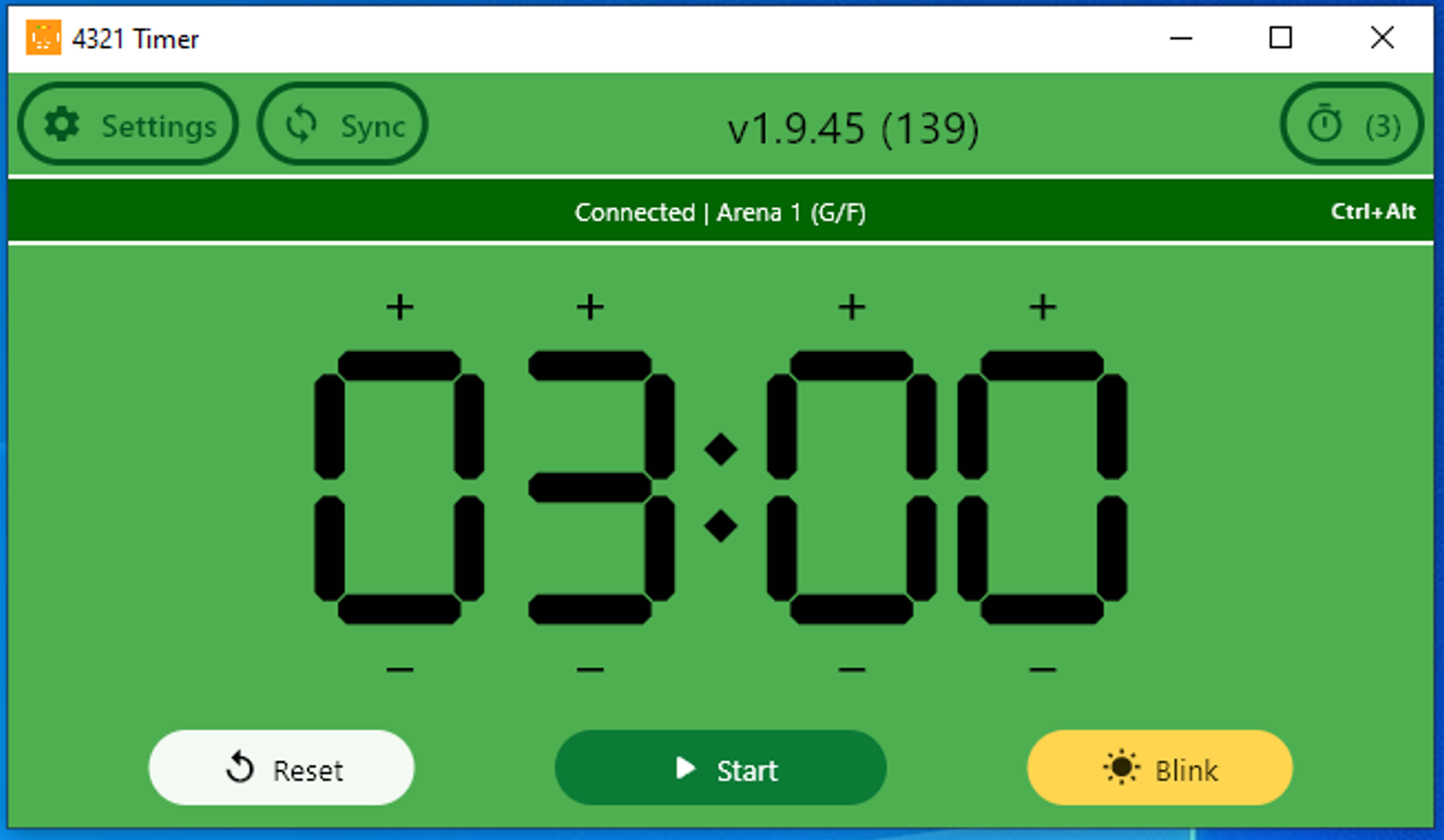
Use these primary controls during the live session.
- Start/Pause: Starts or pauses the selected timer. Use it when the speaker begins and ends.
- Reset: Returns the selected duration to its starting value.
- Blink: Toggles a visual reminder state. Use it intermittently, for example, at one minute overtime, to alert the chair and speaker.
- Sync: Sends the Console state to all connected Displays. Use this when you notice one or more timers are out of sync.
- Overtime: The timer will visually indicate when it passes zero.
Use Display Mode
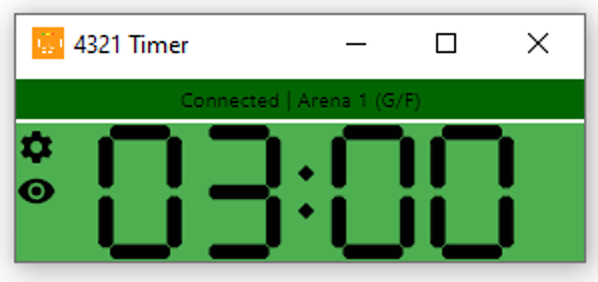
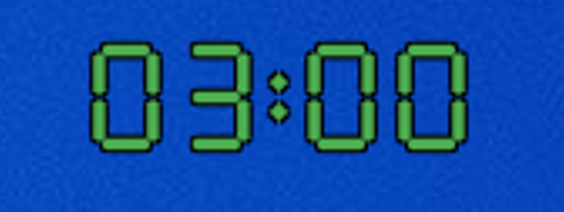
A Display shows the active timer for viewing purposes. It does not provide control buttons.
- Ensure the Display has joined the same event and venue as the Console.
- Confirm that the Display updates when the Console starts, pauses, resets, blinks, syncs, or changes preset.
- On a desktop, you can use the compact transparent Display view to minimize the timer size. Double-clicking it will return to the normal Display view.
Hotkeys
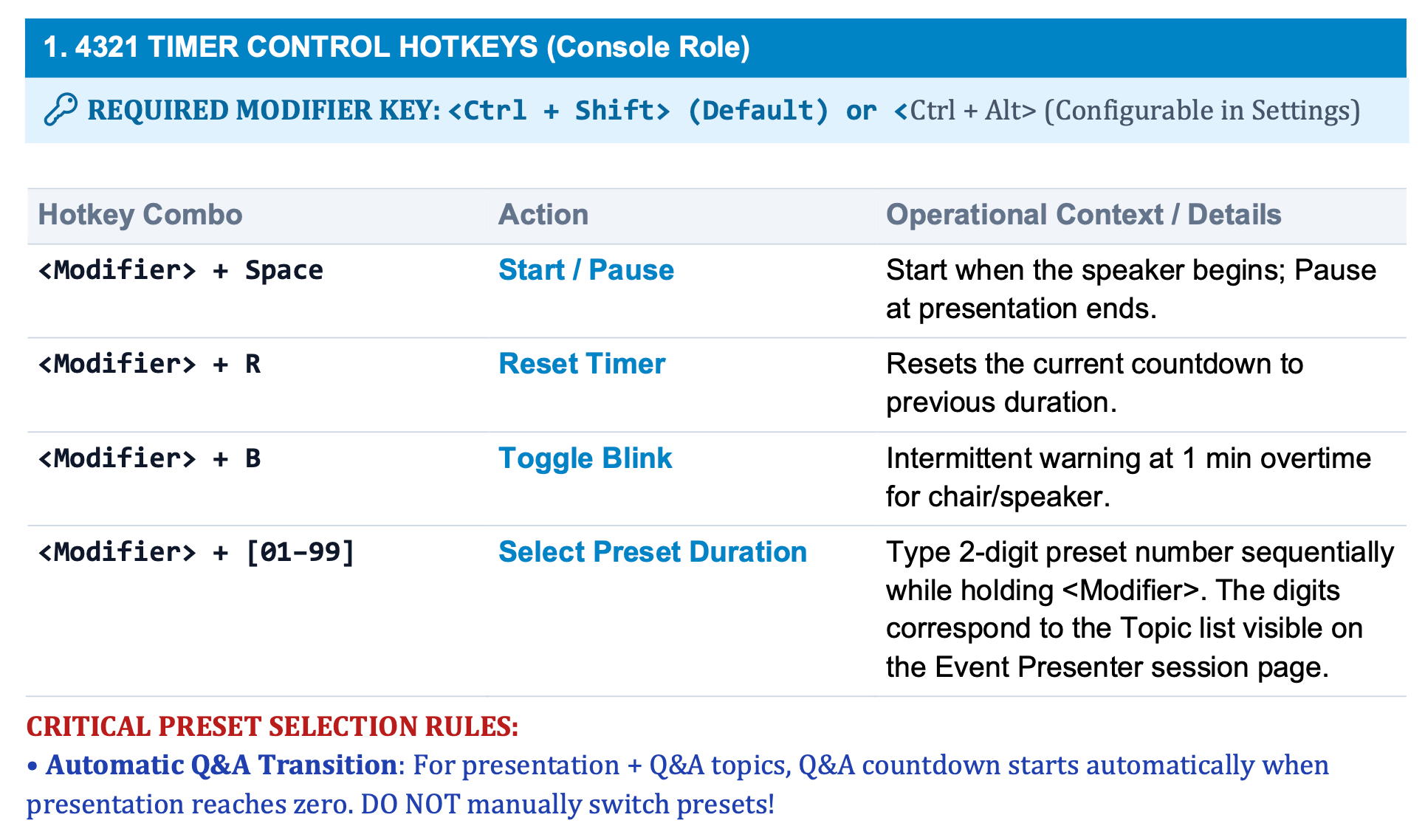
4321 Timer Hotkeys are system-wide, desktop-only, and execute actions only in Console mode. The modifier key is configurable in Settings.
Default Modifier: Ctrl + Shift
- <modifier> + Space: Toggle Start/Pause.
- <modifier> + R: Reset.
- <modifier> + B: Toggle Blink.
- <modifier> + 01-99: Select a preset.
— Two digits (e.g., <modifier> + 1, 0 for preset 10) apply immediately.
— Note: Preset 01 is the first topic, preset 10 is the tenth topic. 0 or an out-of-range number is ignored.
Troubleshooting Live Control
- Preset list is empty or stale: Sync again from Event Presenter.
- Display differs from Console: Click Sync and confirm the devices are synced in the same room.
- Hotkeys fail: Confirm the desktop app is running in Console mode and you are using the correct modifier key.
- Connection is lost: Wait for network recovery. If the problem persists, contact technical support.